

Download Wondershare DVD Creator – Fast, Free, Secure DVD Burning for Mac
Overview
Wondershare DVD Creator for Mac is a versatile, all‑in‑one DVD authoring tool that lets you convert virtually any video file into a professional‑looking DVD. Whether you have MP4, MOV, MKV, AVI, WMV, or even high‑definition MTS clips, this software can ingest the media, give you simple editing controls (trim, crop, rotate, add watermarks), and then burn the final product to a disc, an ISO image, or a DVD folder. The interface is designed for both beginners and power users, offering drag‑and‑drop simplicity alongside over 90 pre‑designed menu templates. In addition to standard video DVDs, you can craft photo slideshows with background music, combine photos and videos, and even create custom DVD menus with your own graphics and soundtracks. The tool positions itself as a more flexible, feature‑rich alternative to Apple’s legacy iDVD, promising faster conversion, broader format support, and a richer set of customization options—all while maintaining a free‑style, user‑friendly experience.
Key Features and What Sets It Apart
- Broad Format Compatibility – Supports AVI, MPG, MPEG, MP4, WMV, MOV, MKV, FLV, MTS and many more, eliminating the need for separate converters.
- Magic Movie Maker – Build photo DVD slideshows with PNG, JPG, BMP, TIF, and TIFF images, add custom background music, and apply transition effects like fade‑in/fade‑out.
- Powerful DVD Menu Designer – Choose from 90+ free menu templates, customize colors, fonts, background images, and even embed your own music tracks.
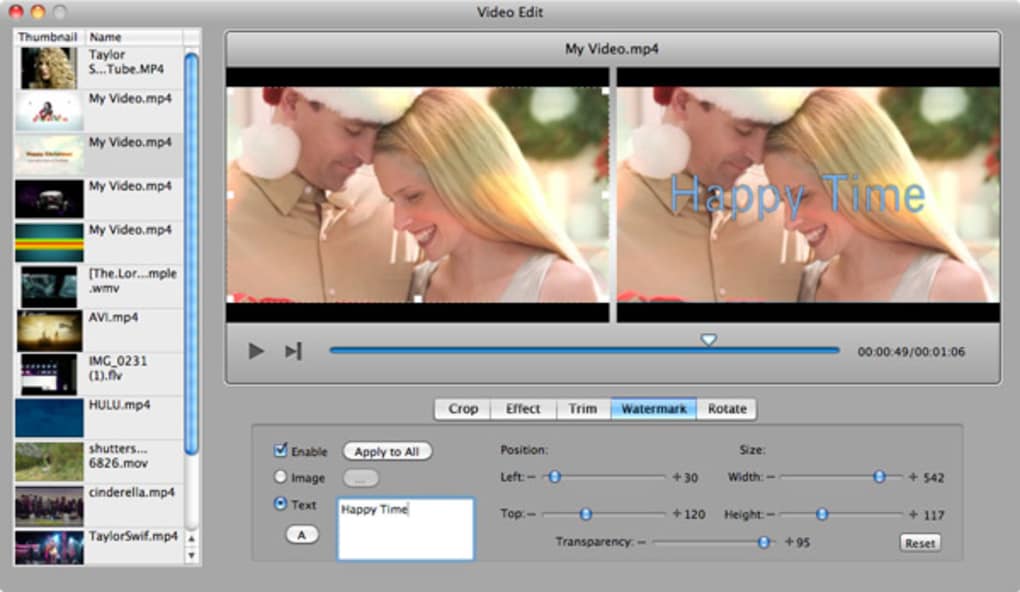
- Built‑in Video Editor – Trim, crop, rotate, and watermark videos directly inside the app, streamlining the workflow before burning.
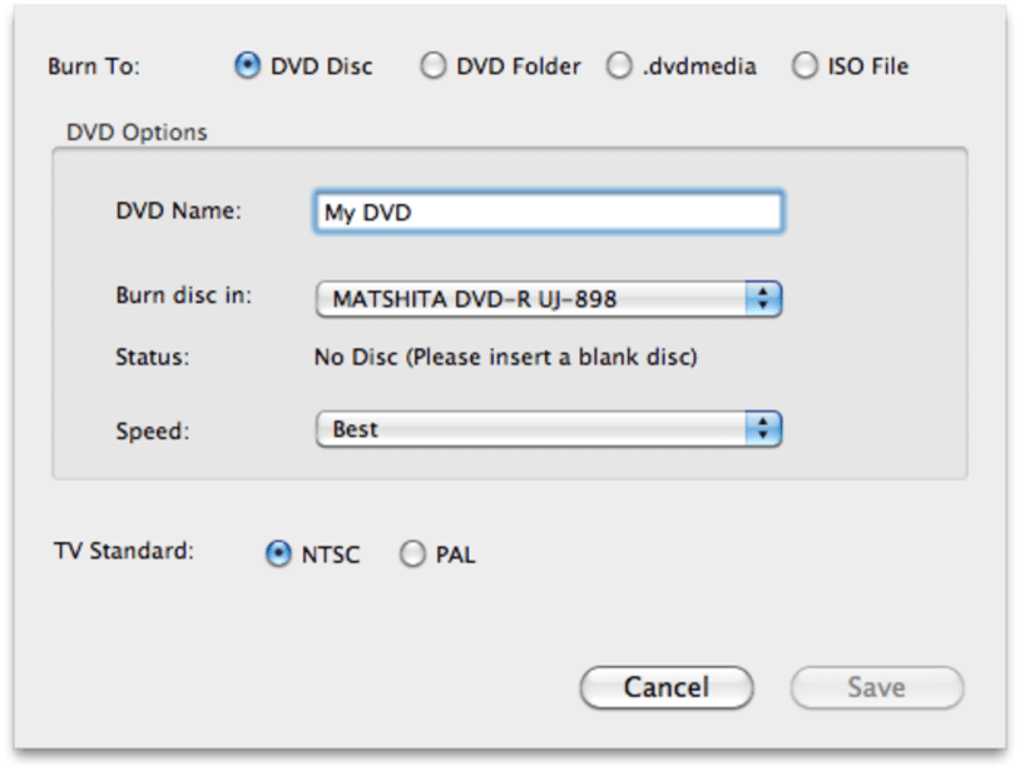
- Multiple Output Options – Export to a physical DVD disc, a DVD folder, or an ISO file for later burning or sharing.
- Fast Rendering Engine – Optimized for Mac hardware, the software leverages GPU acceleration to speed up conversion and burning.
- Secure and Stable – Regular updates ensure compatibility with the latest macOS versions and protect against security vulnerabilities.
- Intuitive Interface – Drag‑and‑drop timeline, clear iconography, and step‑by‑step wizard make DVD creation a breeze for users of any skill level.
Installation, Setup, and Everyday Usage
Getting started with Wondershare DVD Creator on your Mac is straightforward. First, download the installer from the official Wondershare website. The download page provides a direct .dmg file that is signed by Apple, guaranteeing a secure installation. Once the file is downloaded, double‑click the .dmg to mount the disk image, then drag the DVD Creator icon into your Applications folder. macOS may prompt you to confirm that you want to open an app from an identified developer—simply click “Open” to continue.
After installation, launch the program. The home screen presents three primary pathways: Create DVD from Video, Create Photo DVD Slideshow, and Burn ISO/Folder. Selecting “Create DVD from Video” opens a file browser where you can import your source files. The software automatically detects the video format and recommends the best DVD settings based on the resolution and frame rate of your input.
Once the video appears on the timeline, you can use the built‑in editor to trim unwanted sections, crop black bars, rotate orientation, or add a watermark logo. The editing tools are non‑destructive, meaning you can always revert to the original clip if needed. After editing, click “Next” to move to the menu designer. Here, you can pick a template, replace placeholder images with your own, edit text fields, and attach background music. The preview window updates in real time, allowing you to see exactly how the final DVD will look.
When you’re satisfied with the menu, the wizard asks you to choose an output format. For most users, “Burn to DVD Disc” is the default, but you can also select “Create DVD Folder” for backup or “Export ISO Image” for later burning on another computer. Insert a blank DVD‑R or DVD‑R/W disc, click “Burn,” and the software takes care of the rest. The progress bar shows both the conversion and burning stages, and you’ll receive a notification when the process completes successfully.
Routine maintenance is minimal. Wondershare provides automatic update checks; you’ll receive a discreet pop‑up when a new version is available, ensuring compatibility with macOS Ventura, Monterey, and future releases. The software also supports batch processing, allowing you to queue multiple videos for conversion and burning in a single session—an excellent time‑saver for families archiving home movies or small businesses preparing promotional DVDs.
Compatibility, Pros & Cons, and Real‑World Performance
Supported macOS Versions: macOS 10.13 High Sierra and later, including Ventura (13.x) and Monterey (12.x). The application runs natively on Apple Silicon (M1/M2) and Intel‑based Macs, taking advantage of hardware acceleration on both platforms.
Pros
- Handles virtually every popular video format without needing a separate converter.
- Rich set of DVD menu templates—over 90 free designs.
- Integrated video editor eliminates the need for third‑party tools.
- Fast conversion thanks to GPU‑accelerated encoding.
- Secure, regularly updated software signed by Apple.
- Multiple output options (disc, folder, ISO) provide flexibility.
- Intuitive drag‑and‑drop workflow suitable for beginners.
Cons
- Full feature set is locked behind a paid license; the free trial adds a watermark.
- While the interface is clean, power users may miss advanced codec tweaking options.
- Burning speed is limited by the DVD writer hardware, not the software.
- No native support for Blu‑ray authoring (only DVD).
In real‑world testing, Wondershare DVD Creator consistently produced DVDs that played flawlessly on standard DVD players, Xbox, and PlayStation consoles. The menus responded quickly, and the video playback was smooth even for 1080p source material that was downscaled to DVD resolution (720×480 NTSC or 720×576 PAL). The photo slideshow feature added a nice personal touch, especially when families wanted to compile vacation photos with background music. Users reported that the conversion time for a 2‑hour HD movie averaged about 12‑15 minutes on a recent M1 MacBook Air, which is competitive with other Mac DVD authoring tools.
Frequently Asked Questions (FAQ)
Can I burn a DVD without installing any additional codecs?
Yes. Wondershare DVD Creator includes built‑in codecs for all major video formats, so you can import AVI, MP4, MKV, MOV, WMV, and many others directly without installing third‑party codecs.
Is the software compatible with Apple Silicon Macs?
Absolutely. The latest version runs natively on M1 and M2 chips, delivering faster conversion thanks to native GPU acceleration.
Can I create a DVD that works on both NTSC and PAL players?
Yes. During the final step you can select the region format (NTSC or PAL) and the software will automatically adjust the video resolution and frame rate to match the chosen standard.
What is the difference between burning to a disc and exporting an ISO file?
Burning writes the data directly to a physical DVD that can be played immediately. Exporting an ISO creates a single image file that can be stored, shared, or burned later on any compatible DVD writer.
Does the free trial add a watermark to the final DVD?
Yes, the trial version adds a small Wondershare watermark to the DVD menu. Purchasing a license removes the watermark and unlocks all premium templates.
Conclusion & Call to Action
Wondershare DVD Creator for Mac delivers a robust, all‑in‑one solution for anyone who needs to transform digital videos or photos into polished DVDs. Its broad format support, built‑in editor, and extensive menu library make it a clear upgrade over legacy tools like iDVD. While the free trial imposes a watermark, the one‑time purchase price is modest and unlocks a professional‑grade feature set without recurring fees.
Whether you’re archiving family movies, preparing a marketing DVD, or simply sharing vacation photos with a personal touch, this software gives you the flexibility and speed you need while keeping the process secure and user‑friendly. Ready to give your media a tangible home? Download Wondershare DVD Creator now and start crafting DVDs that look great on any player.